











Short answer: upload the photo to a reverse image search (Google Lens, Bing Visual Search, TinEye or Yandex), compare the results, check the suspicious profile's age and links and, if it uses your photos, report the account on the network where it lives and request removal with screenshots and your originals as proof. No search engine finds everything, so use at least two.
This guide is for adults 18 and older: creators who want to watch over their photos and fans who want to know whether a profile is real. Here we cover the tools; for the warning signs on a profile and the typical scams, read how to spot fake accounts, which we don't repeat.
What you need before you start
- The photo in question, saved on your phone or computer, or its web address.
- The username and link of the suspicious profile.
- A place to keep dated screenshots.
Reverse image search on a computer
Google (Lens)
- Go to google.com and click the Search by image icon in the search bar.
- Upload the photo with "Upload a file," drag it into the box, or paste its link under "Paste image link" and click Search.
- Shortcut in Chrome: right-click any image on a website and choose "Search with Google Lens"; the results open in a sidebar.
- Refine with the "Add to your search" box if you want to add words.
These steps come from Google's help page. The exact button names can change with language and version.
Bing Visual Search
- Open Bing Images and select the camera icon in the search box.
- Choose how to load the photo: drag it, upload a file, or paste the image or its link.
- Review the pages where it appears, according to Microsoft's help page.
TinEye
- Go to tineye.com.
- Upload the image or paste its web address. Its site also lists browser extensions and apps, and its help page mentions free use with limits.
- Sort by age if the tool offers it: the oldest version usually shows who posted first. This option may vary, so check it on screen.
Yandex Images
- Open yandex.com/images and click the image search button to the right of the search box.
- Add the photo: drag it, choose "Select file," paste it from the clipboard or type its web address.
- If you can't see the button, clear the text in the search box: according to Yandex, it is hidden once you've typed a query.
Reverse image search on your phone
- Google on Android: open the photo in Google Photos, tap the three dots and choose Google Lens, according to a Trecebits tutorial.
- Google on iPhone: open the Google app or Chrome, tap the Lens icon and pick the photo. In Chrome you can also press and hold an image on a website and search for it on Google.
- Bing: tap the camera icon in the search box and choose an image saved on your device, according to Microsoft. On a web page, pressing and holding the image offers to search it on Bing.
- Yandex: open its site, tap the image search icon and pick a photo from your gallery, according to its help page.
- TinEye: from your phone's browser, open tineye.com and upload the image.
If the Lens option doesn't appear, update the Google app. Menus change often and may have a different name.
How to read the results
| What you see | What it may mean |
|---|---|
| The same photo on your official profile, with an earlier date | Someone copied it from you |
| The photo on accounts of different people | Possibly a stolen-photo bank |
| Similar photos, but not identical | Could be another person or an edit; don't accuse without proof |
| No results | Proves nothing: search engines don't index everything |
Also try a crop of the face or a distinctive background, because copiers often crop or mirror the image.
Checking whether a profile is real
- Look at its age. Check the date of the first post and the number of followers against real comments. A newly created account using a famous person's image deserves suspicion.
- Look for the two-way link. A creator's official profile usually appears in the bio of her verified Instagram, TikTok or X, and vice versa. If the link goes only one way, be wary.
- Check the verification badge. Meta (Facebook and Instagram) and X have badges, but some are obtained through a paid subscription, so a badge alone doesn't prove the person is who she says.
- Compare the username letter by letter with the one the creator announces on her official networks.
- Cross-check. Search the username on Google in quotation marks and on other networks; impostors often recycle the same bio.
The warning signs and the most common scams are in the fake accounts guide. To see how to reach a legitimate profile, read how to sign up and subscribe on OnlyFans.
If someone is using your photos: what to do
- Gather evidence. Capture the whole profile, the address (URL) and the posts, with the date visible. Keep your originals and their dates.
- Don't reply or pay the impostor and don't hand over data.
- Report on each network where the account is (below).
- Warn your followers from your official networks with your real link.
- Ask Google to remove the results if the photo shows up in search.
- Repeat the search every month: removed profiles often come back under another name.
How to report on each network
| Network | How to report impersonation |
|---|---|
| Open the profile, click "Options" under the cover photo and choose "Report profile," according to Facebook's help page. If you have no account, the help page links a form. | |
| Open the profile, tap the three dots, choose Report and the option that it is pretending to be someone else, according to specialist outlets; Instagram's help center also has an impersonation form for people without an account. | |
| X | Its Help Center has an option to report impersonation. You must say who is being impersonated. |
| TikTok | Use the in-app report or the impersonation form in its Help Center. |
Menu names can change; if you can't find them, search "impersonation" in the network's help center.
How to request removal of the photos
- On the platform: besides the impersonation report, you can file a copyright notice, because the photos you took are yours. Look for the form in each network's help center.
- On Google: if there are intimate images without your consent, use Google's content removal form. You must give the page addresses, add screenshots and can ask it to look for duplicates. Google removes results from Search but not the content on the original page: for that you must contact the site owner, according to its help page. Google emails you if it removes a result.
- With StopNCII.org: it creates a digital fingerprint of your intimate images on your own device, without sending the file, and participating platforms look for matches. It only acts on the platforms on its list, according to its site.
- If they ask for money or make threats, keep the evidence and file a report with the police or prosecutor's office in your country.
Common mistakes
- Accusing without proof. A similar photo doesn't prove the account is fake.
- Uploading your intimate photos to unknown sites "to check them." Use only the search engines in this guide.
- Deleting the evidence before reporting.
- Trusting the badge alone. Look at the account's age and links too.
This guide in 7 images



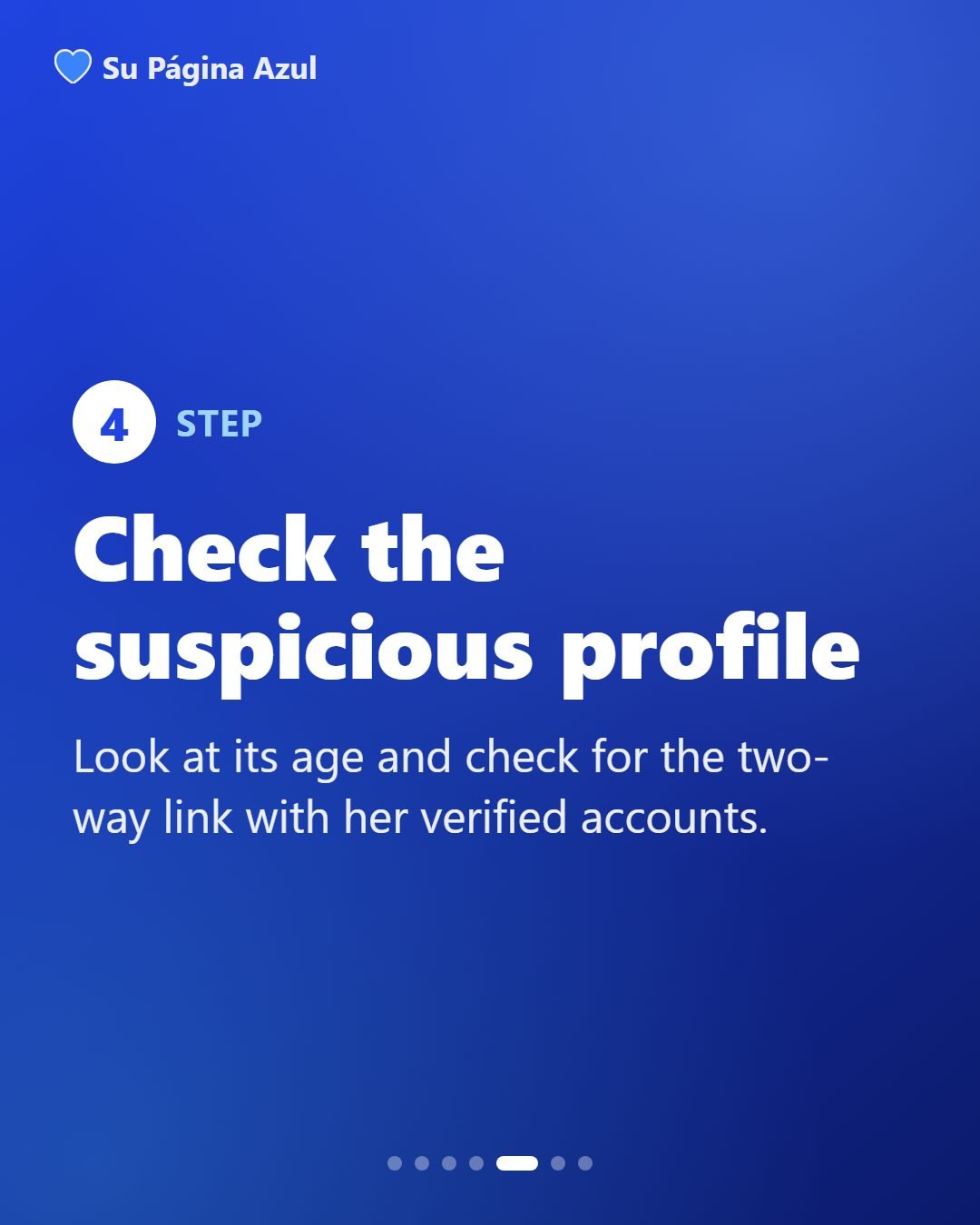


Swipe to see them all.
Frequently asked questions
What is the best reverse image search?
None finds everything. Start with Google Lens and repeat with Bing, TinEye and Yandex, because each indexes different pages.
Is reverse image search free?
Google, Bing and Yandex let you search without paying. TinEye offers free use with limits, according to its site.
What if no results appear?
It doesn't mean the photo is safe. Try crops and another version of the image, and repeat the search later.
Can I report if I'm not the person in the photos?
You can report the profile as fake. To request removal for rights or intimate images, the affected person normally has to do it.
How long does a network take to respond?
It varies and there is no single deadline. Keep the report number, follow up and report again if the account is still active.
Sources
- Google Search Help, "Search with an image" (support.google.com/websearch/answer/1325808), consulted November 14, 2026.
- Google Search Help, removal of non-consensual intimate imagery (support.google.com/websearch/answer/9116649), consulted November 14, 2026.
- Microsoft Support, Bing Visual Search (support.microsoft.com/en-US/bing/using-bing-visual-search), consulted November 14, 2026.
- Yandex Images Help, search by image (yandex.com/support/images), consulted November 14, 2026.
- TinEye, "How it works" (tineye.com/how), consulted November 14, 2026.
- Facebook Help, reporting a profile that is impersonating you (facebook.com/help/174210519303259), consulted November 14, 2026.
- StopNCII.org, how it works (stopncii.org/how-it-works), consulted November 14, 2026.
- Trecebits, "Cómo hacer una búsqueda inversa de imágenes en el móvil."
- AARP, "What to Do If Someone Is Impersonating You on Social Media," and X's help pages on impersonation, for the reporting routes on Instagram, X and TikTok.